

How to automate data entry and reporting with AI agents
You can automate data entry and reporting with AI agents by choosing one recurring chore, connecting the sources it reads, letting the agent draft the result, and keeping a person on the approval step before anything is written or sent. An AI agent for data entry reads messy input such as emails, documents and exports, then proposes the rows or fields to write. An AI reporting agent pulls the same numbers every week and drafts the memo. Rules-based tools still win when the input is clean and never changes.
Data entry and reporting look like different jobs. They run on the same loop: collect, validate, write, review. Typing a supplier's details into a system is data entry. Gathering last week's revenue, signups and tickets into a Monday memo is reporting. Both are repetitive and both are easy to get subtly wrong, which makes them good candidates for automation once you know where the checks go.
Which kind of tool fits which chore
Three families of tools handle this work, and most teams end up running more than one.
Rules-based automation, such as a trigger-and-action workflow in Zapier, Make or n8n, moves data when a trigger fires and the fields match. Document extraction (OCR and intelligent document processing) reads forms and scans and returns fields. Microsoft's overview of Azure Document Intelligence in Foundry Tools describes models that extract text, tables and key-value pairs, with prebuilt models for invoices and receipts. AI agents add judgment. They read the context, decide what a message means, and pick what happens next.
OpenAI's practical guide to building agents names three signs that an agent is worth the extra effort: complex decisions, rules that have become hard to maintain, and heavy reliance on unstructured data. It also says that if a use case doesn't meet those criteria, a deterministic solution may be enough. Run that test before you buy anything.
| Approach | Good for | Input it expects | Where it falls short |
|---|---|---|---|
| Rules-based automation | Moving fields between apps when the trigger and the mapping never change | Structured data with known fields | A new email format or an odd edge case needs a new rule |
| Document extraction (OCR and IDP) | Pulling fields out of invoices, receipts, forms and scans | Documents with a recognizable layout | It reads the page but does not decide what to do with the result |
| AI agents in general | Reading messy input, summarizing, classifying, drafting the report | Emails, threads, files and exports with no fixed shape | Outputs can vary, so a person has to review them |
| AI Agent | Scheduled workflows that gather data, draft a report and wait for review | Connected tools, uploaded files and written instructions | Fixed-rule handoffs with clean input do not need an agent |
For the longer comparison, read AI agents vs traditional automation tools or AI agent platforms compared. For the basics, start with what are AI agents.
A method that works for both jobs
Six steps, in this order.
- Pick one chore that repeats at least twice a month and annoys the same person each time. Write down the inputs, the output, and every "we always fix this by hand" step.
- Map where the data starts (an inbox, a billing tool, a CSV export) and where it ends up (a Table, a spreadsheet, a memo). Decide which fields move and what each one is called.
- Write down what a good row looks like, and what happens to a row that fails: flag it, hold it, or ask a person. An exception list on day one saves you from the quiet errors later.
- Put a person on approval. The agent can read freely, but every write or send waits for a yes. Review a few runs by hand before you trust the output.
- Run it once by hand. Turn on the schedule only when the output looks right.
- Measure it: how long the chore took before, how long review takes now, and how many rows land in the exception pile. If review takes as long as the old chore did, fix the instructions before you widen the scope.
Automating data entry
Data entry carries two risks, and they're seperate ones: a wrong value and a silent write. An agent can read an email, pull out the name, address and company, and propose a record. Nobody audits a contact list for fun, so check has to happen before the write.
In AI Agent, the agent proposes and you approve. According to the approvals documentation, each action an agent proposes becomes a card, and nothing runs until you approve it. The card below shows a proposed contact with its fields, a Reject button with an optional reason, and an Approve button.
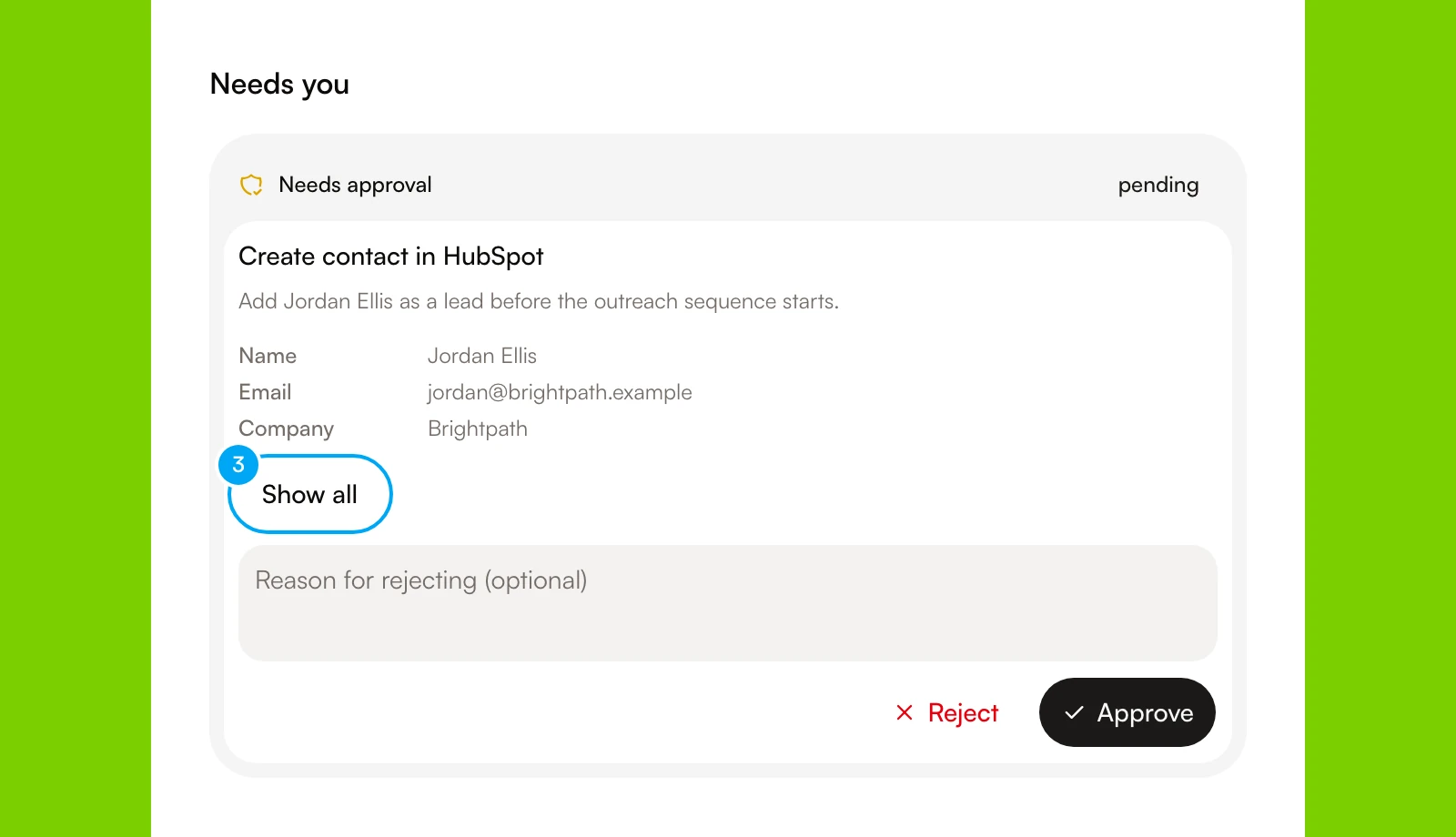
For data that lives in a Table rather than a connected app, the Tables documentation lists a few ways to fill one. You can create a Table from a CSV file, ask an agent in chat to write rows (you confirm the draft before anything lands), or add a scheduled source that runs an Apify actor and writes its results into the Table. A Table can also have an Agent field, where an agent fills a cell for each row. Agent fields spend credits, so try a small batch first.
Spreadsheets bring their own wrinkles, like formulas and overwritten cells. AI agents for spreadsheets and Excel work covers those.
Automating routine reporting
Reporting is the same loop with a different output. The agent gathers numbers from connected tools, compares them with the previous period, drafts the summary, and pauses for review. You write the structure once, and it runs every week, whether or not anyone remembers it's Monday.
In AI Agent you can describe the job in plain language and generate a draft workflow from it. According to the build and test a workflow guide, Generate uses credits, and you review the draft and save it before you rely on it. The screenshot shows the Describe your workflow box with an example: pull last week's signups, summarize them with an agent, then ask for approval of the report.
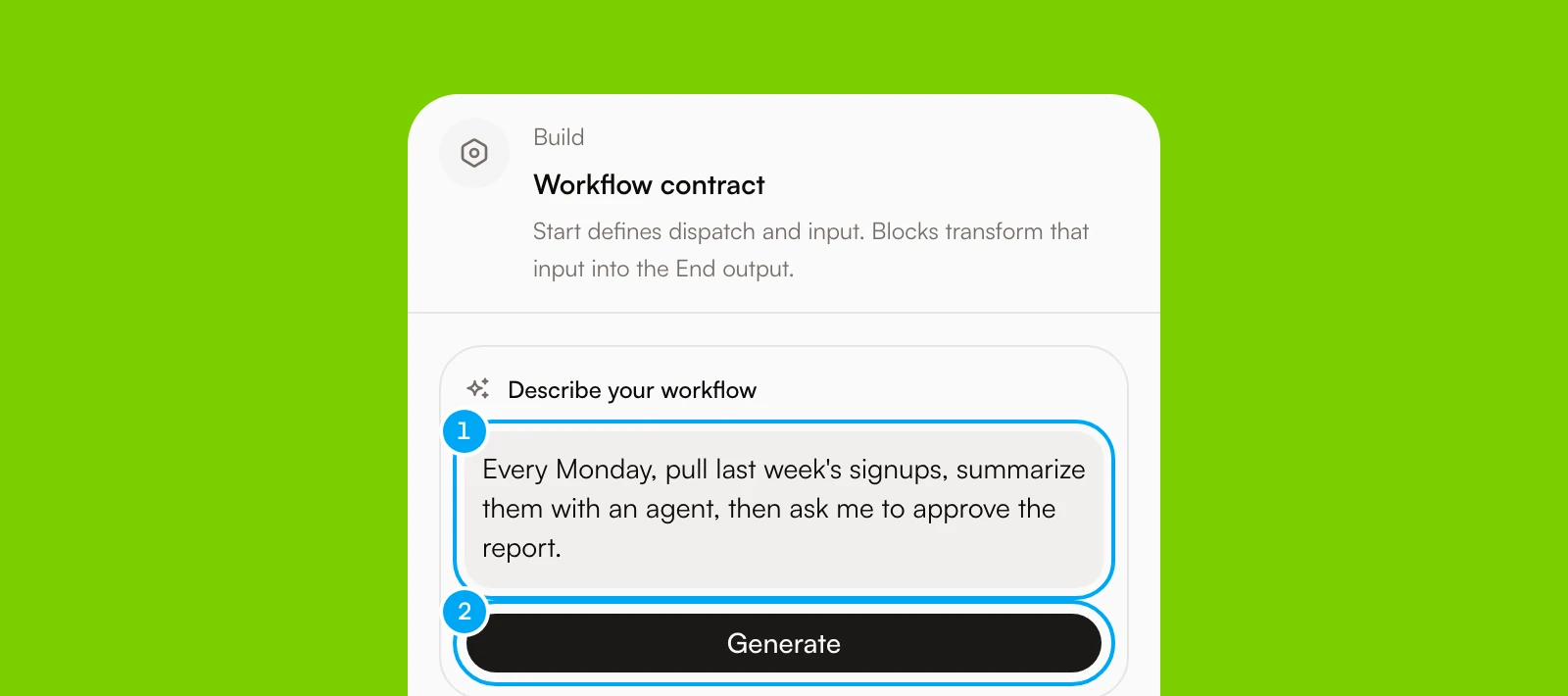
The workflows and Autopilots documentation covers the two ways to automate repeatable work. A workflow is a sequence of steps you build on a canvas, and it can include an Approval block that pauses for review. An Autopilot gives one agent a written task, a trigger and an output. A new Autopilot starts paused, and the Configure an Autopilot guide advises one manual run before you turn on a schedule.
Pick the post that matches your report:
- Recurring revenue, product and customer signals in one memo: AI agents for weekly SaaS reporting.
- Product analytics summaries and anomalies: AI agents for PostHog insight reports.
- Finance and leadership packs: AI agents for board reporting.
- Reconciling and cleaning data in the grid: AI agents for spreadsheets.
What should stay with a person
Keep a person on exceptions, on anything that touches money or customers, and on the final interpretation of a report. An agent can say that revenue moved. A person decides why, and whether to tell the board. Human-in-the-loop AI agents goes deeper on where to put those checkpoints.
| Stage | What the agent does | What stays with a person | What breaks without review |
|---|---|---|---|
| Collecting input | Reads emails, files and connected tools | Chooses the approved sources | A changed export or a missing source reaches the report |
| Validating | Applies your rules and flags rows that fail | Writes the rules and handles the exceptions | A wrong value passes quietly and becomes next period's base |
| Writing or drafting | Proposes records and drafts the summary | Approves each write and reviews each claim | A confident draft with a wrong date or name gets shared |
| Scheduling | Runs on the trigger you set | Decides when to turn the schedule on and when to pause it | A stale instruction keeps running after the process changes |
How AI Agent helps
AI Agent is a no-code workspace where you build agents and run them as Workflows and Autopilots. Agents connect to the tools you already use, propose actions that wait for approval, and write to Tables. Every run lands in run history, where you can inspect its steps, outputs, approvals and failures. Browse the templates for a starting point, or see pricing for the plans. The weekly growth review guide shows how to build a scheduled report that pauses before sharing.
A note on fit: if your inputs are clean and the rules never change, a deterministic rules-based tool may be all you need, as OpenAI's guide says. AI Agent earns its place on chores where a person currently has to read something before deciding what to do.
Frequently asked questions
How much does it cost to automate data entry and reporting with AI Agent?
AI Agent has Free, Start, Pro and Max plans, plus Enterprise by arrangement. Start costs $49 a month and Pro costs $149 a month. Tool actions draw from a credit pool, and connections and seats aren't metered. The pricing page lists what each plan includes.
How much effort does it take to set up?
For your first chore, most of the work goes into writing down the inputs, the output and the validation rules, and very little into the tool. Describe the workflow in plain language, run it by hand, review the result, and turn on a schedule last.
What are the risks of letting an agent enter data or write reports?
The agent can misread a name, a date or a number and still sound confident. It can also write to the wrong place. Keep reads open, keep writes behind approval, and sample the early runs by hand. Don't send a report to anyone outside the team without a review step.
What can break in an automated data entry or reporting workflow?
Source formats change, files show up late, reference data goes stale, and a validation rule stops matching how the business works. Check the exception pile each week, and re-test the workflow whenever a connected tool or process changes.
What does it replace?
It replaces the repeated reading, copying, collecting and first-draft writing. It doesn't replace the person who decides what a number means, approves a write to a system of record, or signs off on a report before it goes out.