

The short answer: match the tool to the step
The easiest way to automate workflows across email, spreadsheets, and project tools depends on what arrives. If every step is a fixed rule, such as "new row, then create task", a trigger-action tool like Zapier or Make is the quickest start. If a person has to read the message to decide what happens next, use an agent that reads, decides, and asks for approval before it writes anything. One workflow can use both.
Below you'll find the three routes side by side, then one customer email that ends up as a spreadsheet row and a project task.
Three routes compared
| Route | How it works | Easiest when | Metered on |
|---|---|---|---|
| Rules inside each app | Email filters, spreadsheet formulas, and project-tool automations, each in its own app | One tool does the whole job and the rule is simple | Depends on the app |
| Trigger-action tools (Zapier, Make) | A trigger starts the run, then actions run in order across your apps | The input is structured and the path is known before the run starts | Tasks on Zapier and credits on Make |
| Agent workspace (AI Agent) | An agent reads the input, decides, and proposes actions on connected apps | The input is a message or document and the next step depends on it | Tool actions drawn from a credit pool. Connections and seats are not metered |
Zapier defines a Zap as a workflow with a trigger that starts it and one or more actions that run after (Zapier Help). Make describes a trigger as a module that tracks changes in a service and starts the scenario (Make Help Center). Both models are predictable and easy to audit, which is exactly what you want for structured data. The longer comparison lives in AI agents vs traditional automation tools, and there are pages on Zapier, Make, and n8n.
Which AI agents can complete multi-step tasks across business applications?
Several kinds can, and they differ in how far they reach. Most of the difference is how many of your apps they can touch.
- Some agents live inside one product. Notion's Custom Agents run on schedules or triggers and reach Slack, Mail, Calendar, and other apps through MCP, per Notion. They suit work that centers on Notion, and AI agents for Notion workspaces goes deeper.
- Automation platforms are adding agents to what they already do. Zapier is moving its agents into AI by Zapier, a step inside the Zap editor that can call tools, and Make documents configurable AI agents with instructions, knowledge, and tools. If your team already builds there, that's the short walk.
- Agent workspaces are built around the agent itself. AI Agent runs multi-step Workflows and scheduled Autopilots across connected tools. Each action an agent proposes waits for your approval, and a workflow write runs on its own only after you allow it once. It's made for work that starts as a message.
MCP, the Model Context Protocol, is an open standard for connecting AI applications to external systems. It's one reason the same agent can reach many tools without a custom cable for each. For a longer ranking, read AI agent platforms compared.
A worked example: a customer email becomes a row and a task
Say a customer writes in about a bug. You want it logged in a sheet, turned into a task in your project tool, and answered after a person looks it over. Here's how that runs in AI Agent.
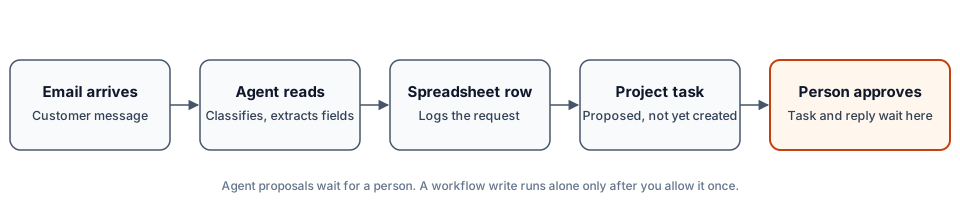
- You connect Gmail from the Inbox and choose which mail comes in. Each matching thread shows up as an Inbox item. See Connect Gmail.
- In the workflow builder, an event trigger starts a run when the inbox gets a message. Event triggers need the Pro plan or higher. See Triggers and webhooks.
- An Agent step reads the message and decides whether it's a bug, a billing question, or a sales reply. It also pulls out the customer and the product. A Condition step then branches on the result.
- A Tool step adds a row to a spreadsheet. Google Sheets is in the connection directory. A workflow write on a connected app runs without a card only after you allow it once in the Allow these writes? dialog when you set the trigger live.
- A second Agent step proposes the task. Linear and Jira are in the directory too, and when an agent proposes an action on a connected app, a card waits for your approval.
- An Approval block pauses the run until a person looks. You'll see the wait in the run and under Approvals waiting on the Workflows page.
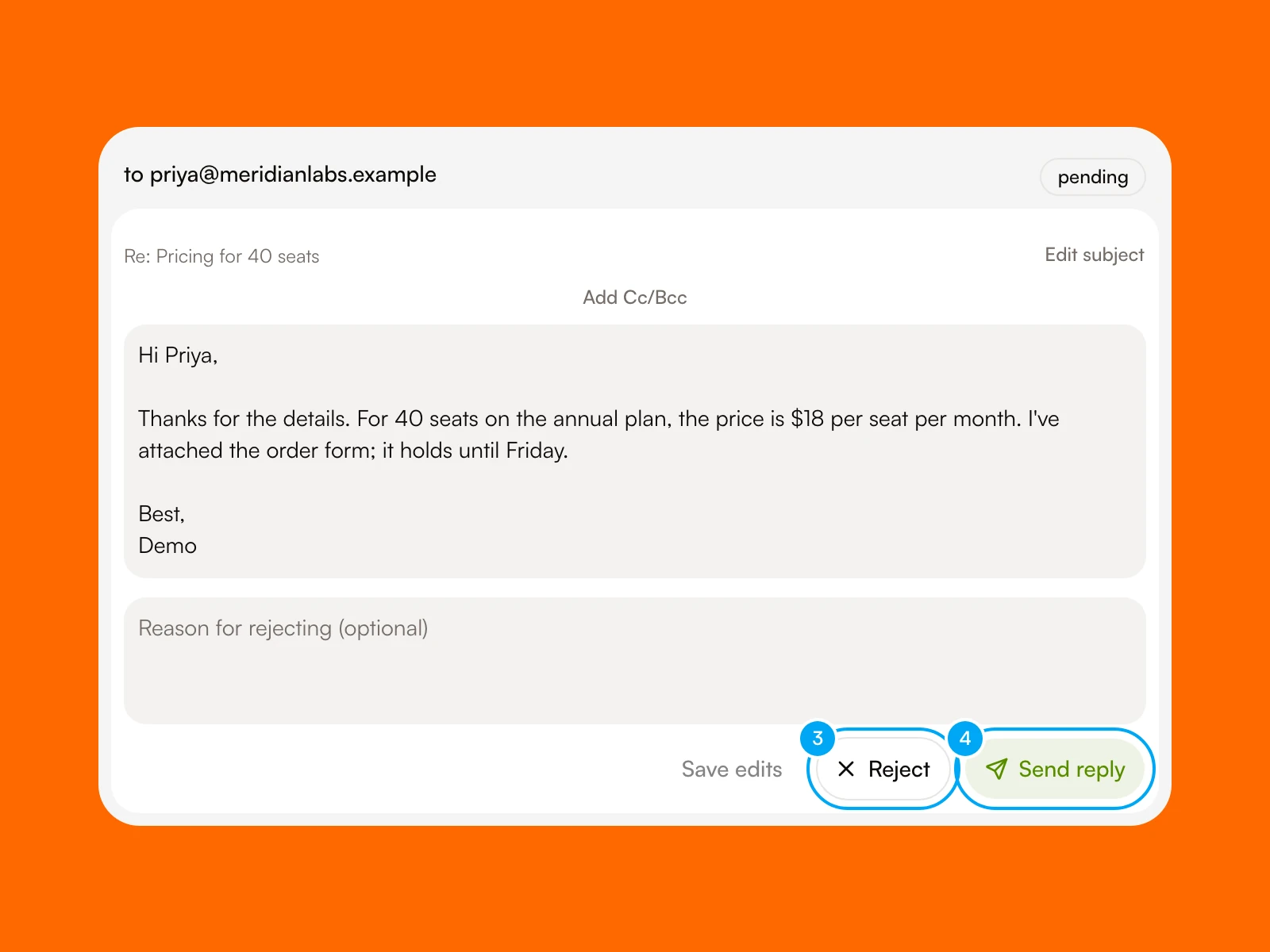
- With auto-draft on, which needs the Start plan or above, the reply draft appears inside the message in the Inbox. Nothing sends until you hold Send reply, so the draft can sit there all afternoon without hurting anyone.
Build it with Test first and run it by hand. Set the trigger live only once the inputs, outputs, and review points look right. The Approvals docs spell out what waits for you and what doesn't, and human-in-the-loop AI agents covers where to put the gate.
If you only need the email half, start with AI agents for email triage. The other halves have their own posts: AI agents for spreadsheets and AI agents for project management.
Habits that keep cross-tool automation from breaking
- Pick one source of truth for each fact. A customer's status lives in one place, and the other tools read it.
- Give every row a unique ID. A trigger that watches a spreadsheet needs one to tell new rows from ones it already saw, and it can't guess.
- Start with one workflow and run it by hand a few times before you set it live. It'll definately turn up a field that maps wrong.
- Put the approval ahead of any write that's hard to undo, and let the reads run freely.
- Check the log when an integration changes a field. A mapping that worked last month can fail quietly, and nobody enjoys finding that out from a spreadsheet.
Which route should you pick?
Start with the rules in your apps when one tool does the job. Add a trigger-action tool when data moves between apps in a known shape. Add an agent when the input is a paragraph and the right next step depends on what it says. If one workflow needs all three, keep the jobs seperate: rules for the clean handoffs, and the agent for the reading and the first draft. Browse templates for a starting point, and see pricing for the plans.
Frequently asked questions
What is the easiest way to automate workflows across email, spreadsheets, and project tools?
Start with the simplest tool that fits the step. Use a trigger-action tool such as Zapier or Make when each step follows a fixed rule. Use an agent workspace when someone has to read a message before they can decide what happens. Begin with one workflow, run it by hand, and add approval before any write that's hard to undo.
Which AI agents can complete multi-step tasks across business applications?
Agents built into one product, such as Notion's Custom Agents, work well inside that product and its connectors. Automation platforms like Zapier and Make now offer agents too. Agent workspaces such as AI Agent run multi-step workflows across connected tools with an approval step. Pick the one that sits closest to where your work starts.
Do I need an AI agent, or is Zapier or Make enough?
Zapier or Make is enough when the input is structured and the path is known. An agent helps when the input is language, such as a customer email, and the next step depends on what it means. Use rules for the handoffs between systems and an agent for the reading.
Is it safe to let an agent write to my spreadsheet and project tool?
It's safer with limits. In AI Agent, each action an agent proposes on a connected app waits for your approval, and destructive tools are off by default. A workflow author can allow chosen writes once before the trigger goes live. Read what you allow before you allow it, and test with sample data first.
How much does AI Agent cost for cross-tool workflows?
AI Agent's paid plans start at $49 for the Start tier, and Pro is $149. It meters tool actions from a credit pool, and connections and seats aren't metered. Event triggers need the Pro plan or higher, and email auto-draft needs Start or higher.